


The Click Through Wizard is a tool you can use to generate click through, open, unsubscribe and subscription links in OpenCRM.
Important
For this to work, you need to make sure your Customer Portal has been enabled. Click here for more information.
You can access the Click Through Wizard on the Edit screen of an Email Template

Clicking the button will open the options available through the Wizard. You can choose between Click Through, Enquiry, Open Tracking, Remove Me and Manage Email Preferences.
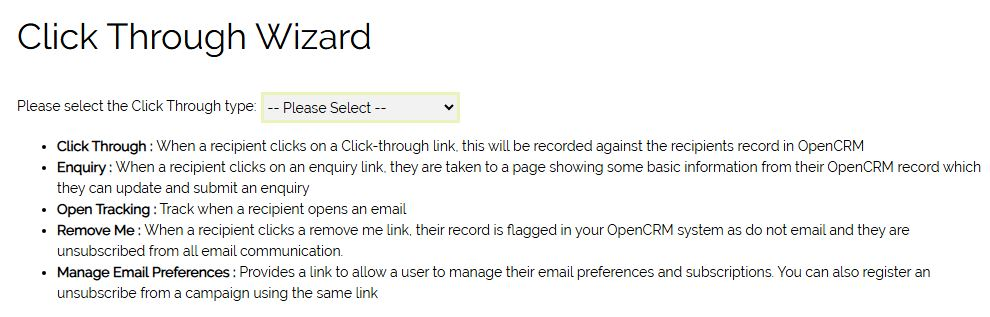
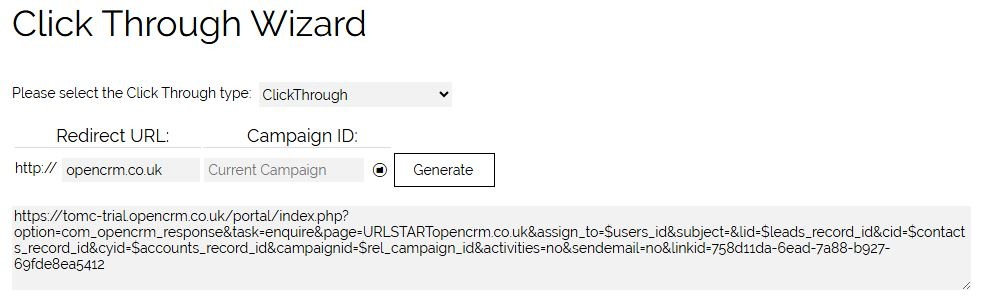
Creating a Clickthrough
- Enter the website to send the email recipient to in the Redirect URL field
- For the Campaign ID, you can either use the folder icon to select a specfic Campaign, or leave the default "Current Campaign" option. This will create a link that will automatically relate any Click Throughs back to the Campaign you have sent the email from.
- Click Generate to create the Link.
- Once the link has been generated, you can copy and paste it to use from any piece of text or image. If you are still working on the template itself, you can paste the generated link into Notepad. You can then retrieve that link and paste it into your template when you are ready to do so.
Open Tracking
By inserting a one-pixel transparent image into your email and linking it OpenCRM system we track when (or if) a user opens your email.
Note: The addition of invisible tracking pixels is governed by the Privacy and Electronic Communications Regulations (Pecr) and General Data Protection Regulation (GDPR). In most cases you will be required to have obtained clear unambiguous consent from your recipients.
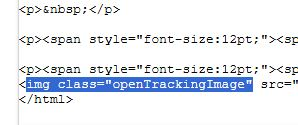
Because we are inserting a blank 1px image into your email you shouldn't be able to see it in the editor window. To check that it has been added after you have filled in the Open Tracking form, similar to the Click Through process above, click on the down arrow on the right of the editor then click on the Source button. This shows your email as html code. If you scroll down to the bottom of the window you should see an "img" tag or line similar to the screenshot below.
Enquiries
The Enquiry function works similar to a Click Through. The main difference is that before the email recipient lands on the website you specified, they will see an Enquiry form where they can fill in some details. When they submit this form, they will be taken to the target website.
Unsubscribes and Subscriptions
You have two options to allow your email recipients who decide they no longer want to receive emails from you. These are both set via the Click Through Wizard.
Unsubscribe - select Remove Me from the list of options. You can choose whether to link the Unsubscribe to a specific Campaign by selecting one from the screen, or use the default "Current Campaign" which will always associate the Unsubscribe:
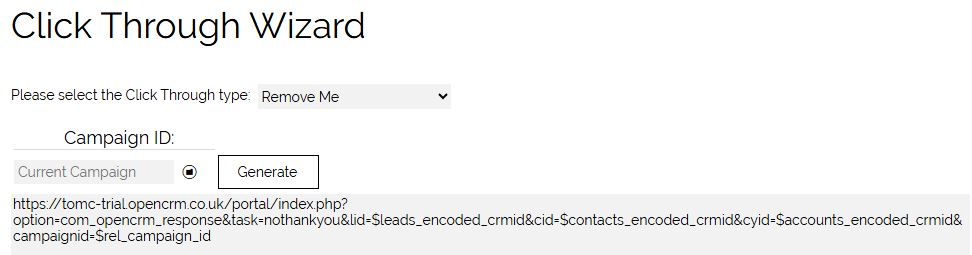
Clicking Generate will create the link, which you can then insert into your email as you do with Click Through links.
If a person unsubscribes, it will tick the Do Not Email field on their record. Once this has happened, if you try and email that person manually, you will see a warning message telling you they have unsubscribed. If you add them to any Campaign, the Do Not Email flag will mean that they will not be included in any email sent from the Campaign.
Subscriptions - This gives your recipients the chance to manage different subscriptions without necessarily having to fully unsubscribe. This is useful if you offer different mailing lists, but also want to ensure you can still email your contacts manually without interference. This FAQ explains how Subscriptions work.
Link Tracking at Campaign Level
From the Campaign Information screen, navigate to the Leads, Contacts, or Companies tab containing the recipients you want to review.
You'll see a list of the Leads/ Contacts/ Companies linked to the Campaign. As well as the standard information (Name, Company Name, Email etc.) you also have:
* A Clicks column displays the total number of clicks per individual on that Campaign.
* A Last Click-Through column indicates the most recent link clicked by the individual.
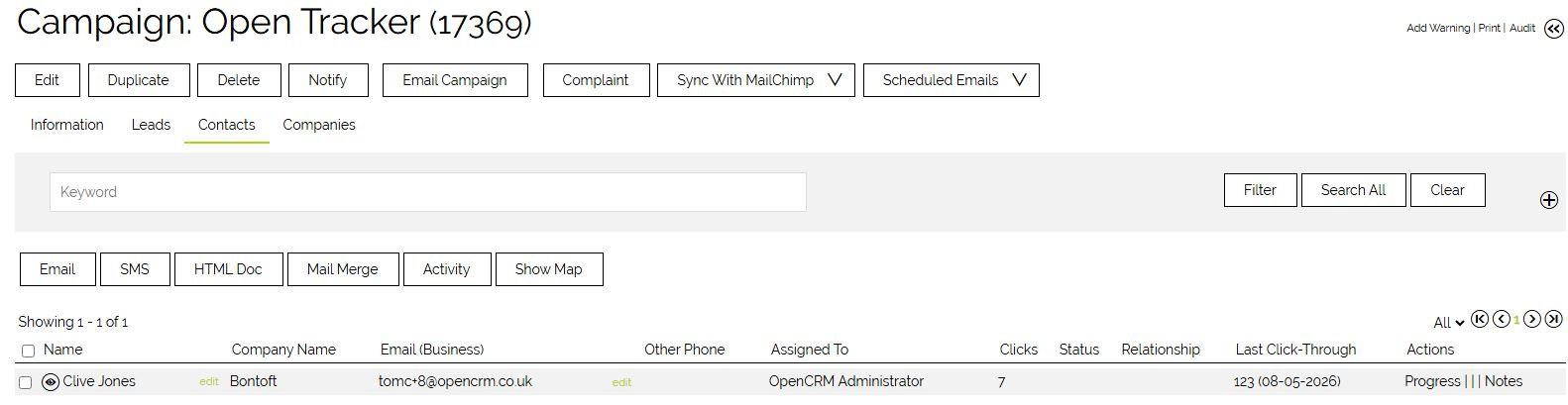
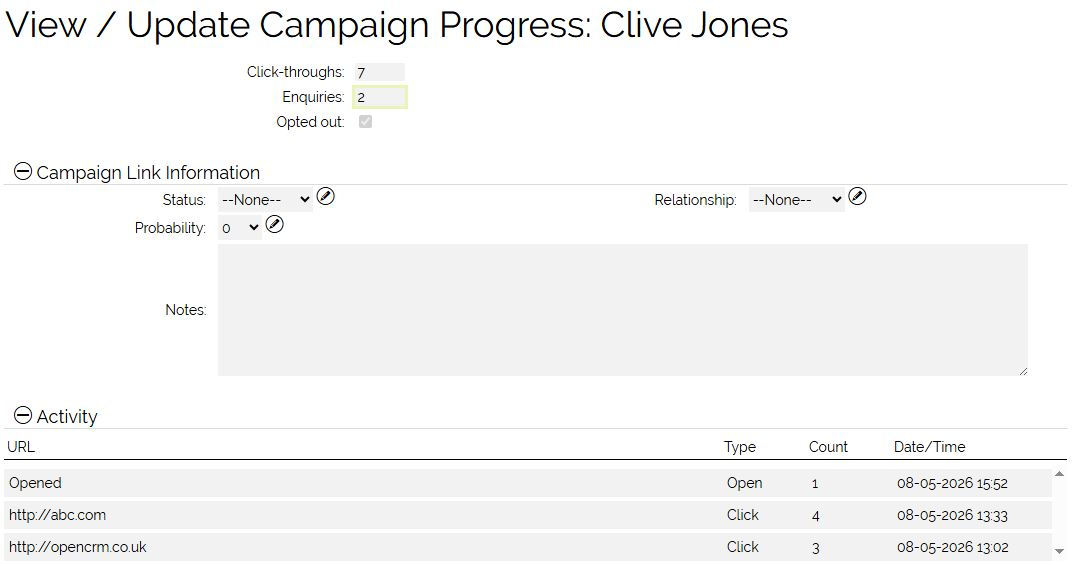
If you click the Progress Action, a pop-up window appears. This provides more detailed feedback regarding the specific links and opens that have been accessed. You can also see a summary of Enquiries and if a person has Unsubscribed (Opted Out):
When viewing a Campaign, you can also open the expanded search and search on the specific link clicked, or show results based on the number of clicks.
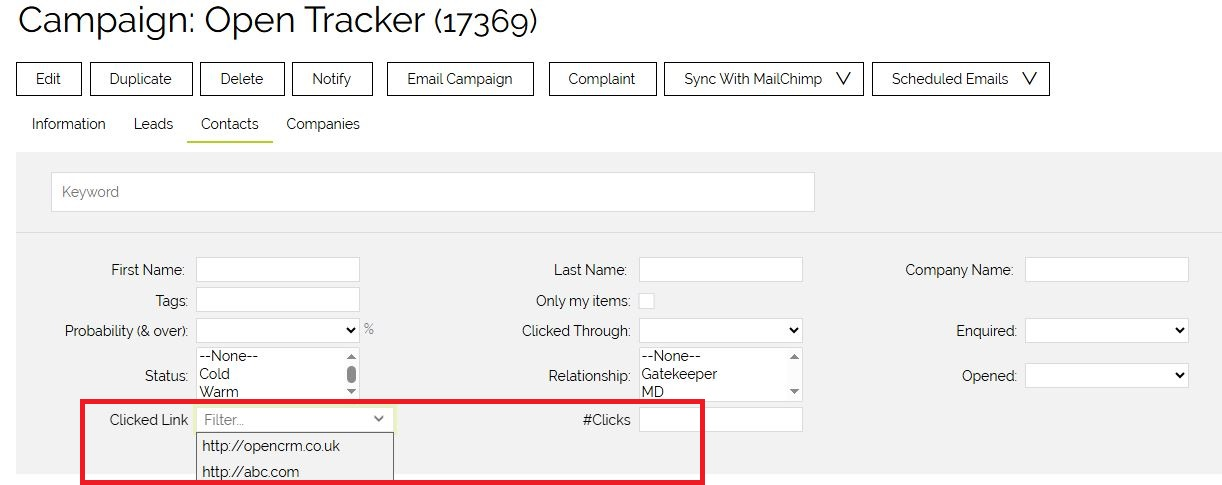
This means you can - for example - search for all Contacts who have clicked on abc.com at least 3 times (enter 3 into the #Clicks field), hit Search All and it will return the list of matching Contacts.
Need More Help?
If you have any questions, just start a Live Chat, "Click" on the Chat Icon in the lower right corner to talk with our support team.