


What is Product Grouping?
Product Grouping lets you organise the products on a sales document into categories, with a sub-total for each one. It appears in the section below the Product Grid on Quotes, Sales Orders, Purchase Orders and Invoices.
To use it, you first need product categories and grouping set up. Once they are, the products on a document can be grouped by category so it's easy to see what each part of the order costs.
Benefits
- Clearer documents for your customers. Sub-totals by category show where the money goes, so the document is easier to read and understand.
- Professional PDF output. Your PDF documents can show the same categories and sub-totals. Several settings let you control how the groups appear, so the PDF looks the way you want.
- Quick setup. The Populate Group Details button sets up every Product Grouping on a record in one click, so you don't have to configure each group by hand.
Setting up Product Grouping
You need Admin status to be able to access Settings.
Go to the Settings section and under the Studio settings expand Picklist Settings. Then click on Edit Product Picklist.

On the next menu, Click to Edit the Quote Groups. Enter a list of groups that you require (e.g. Hardware, Software) - one per line - and Save.
It is worth making sure that you have matching Categories set up on Products. You can access and edit the Product Category picklist by selecting the Edit Product Picklist option (see above screenshot).

To use the saved groups on a Quote or Sales Order
The list you created will now be available using the Select Grouping option which appears under the Product Name. When the Product Categories and Quote Groups match up these Groupings will be populated automatically. Otherwise, you can manually attribute a Product to one of the Groups you have created.

Populating the Group Sub Totals
You can either select the Groups you wish to total manually, by using the drop-down Select Grouping field:

The selected row will then total and display the value, including margin and discount, of all Products in the selected Category.
Using the Populate Group Details will automatically create and fill groupings for all products on that Quote or Sales Order.
Using the Delete function you can delete any rows if required. Any subsequent changes to the Product Rows on the Quote or Sales Order will auto-update any existing Product Groups on Apply or Save, however, if you add a Product from another Group or Category you will need to select Populate Group Details once more.
Choosing which Columns to Display in the Group Sub Totals
As well as having the Category and Description, there are a number of columns available to dispay in this Sub Total section:
Discount % - a percentage of the discount for all Products per Category
Discount - the total amount that has been discounted per Category
Category Cost Subtotal - the total Buy Price for all line items grouped by Category
Category Subtotal - the line item total pre- discount grouped by Category
Category Subtotal w/ Discount - the discounted line item total grouped by Category
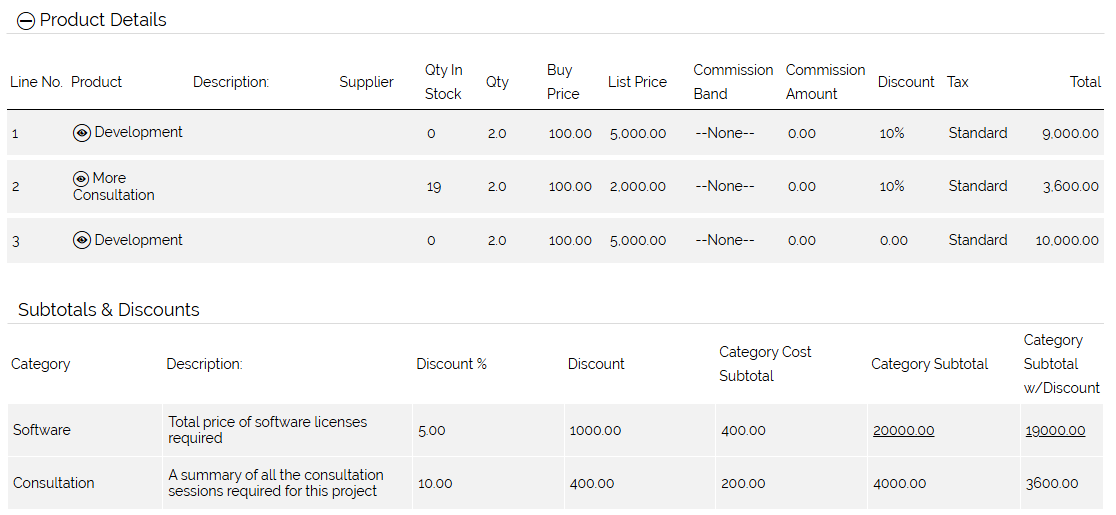
Whilst you can edit the content of the Description field or change the Category via the dropdown, the other fields are not editable. Their values are calculated from the associated Producy lines.
Visibility of these columns is managed in Additional Settings, under the relevant section for Invoices, Purchase Orders, Quotes and Sales Orders:

Creating a PDF
You can export the Quote or Sales Order to PDF, and email this PDF to your client. There are numerous settings available which allow for complete customisation of the Groups output on the PDF. For details on how to do this please see this FAQ.
Need More Help?
If you have any questions, just start a Live Chat, "Click" on the Chat Icon in the lower right corner to talk with our support team.